New Features
Multi-Property Submissions
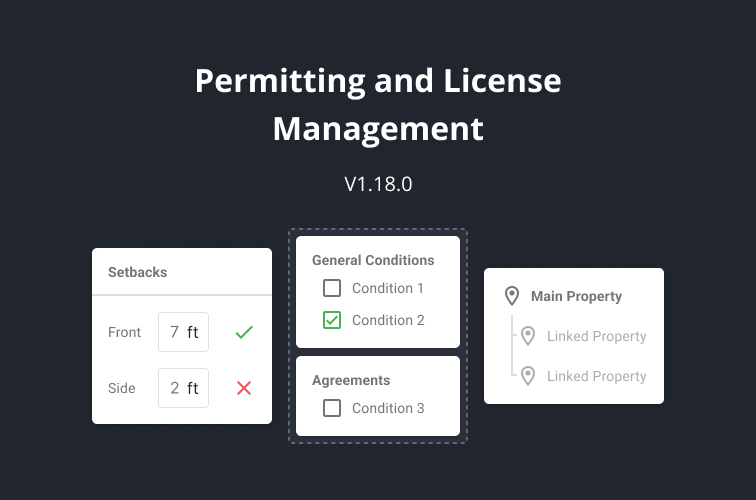
Submissions can now have more than one property added to them. If you have Catalis GIS (Webmap) each property will have the associated submission linked in the data management window. In addition, we’ve added linked property tokens that can be used in documents in adjacent property action steps.
Bylaw
We’ve taken the feedback from many of our users to create a dedicated bylaw module for Permitting and License Management. This includes bylaws, setbacks, and improvements to conditions. The previous method of how we handled conditions still exists, but for those that want a more streamlined process they can use the new bylaw module.
Bylaw Configuration
We have added a new bylaw configuration that makes managing bylaws, land uses, conditions, and setbacks more user friendly. This includes import functionality, making the set up quicker.
Conditions Overhaul
We’ve leaned into conditions based on user feedback. Now users can drag and drop the conditions order, we’ve added numbering, and conditions can be marked as done. We’ve also improved handling of conditions by making them part of Bylaw.
Dedicated Land Uses and Setbacks for applicants
Municipalities can configure setbacks so that applicants can see what setbacks are allowed and if their project falls within them.
Enhancements
Default values
When adding a field in workflow builder users can now set a default value for the field.
Custom assignee names
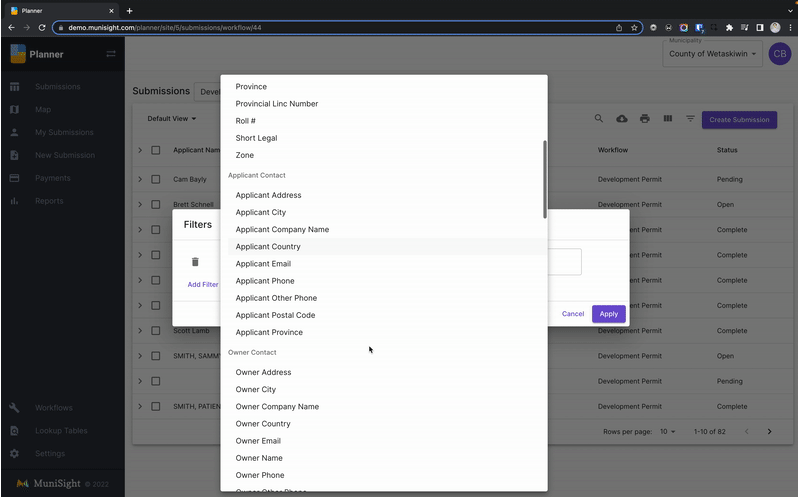
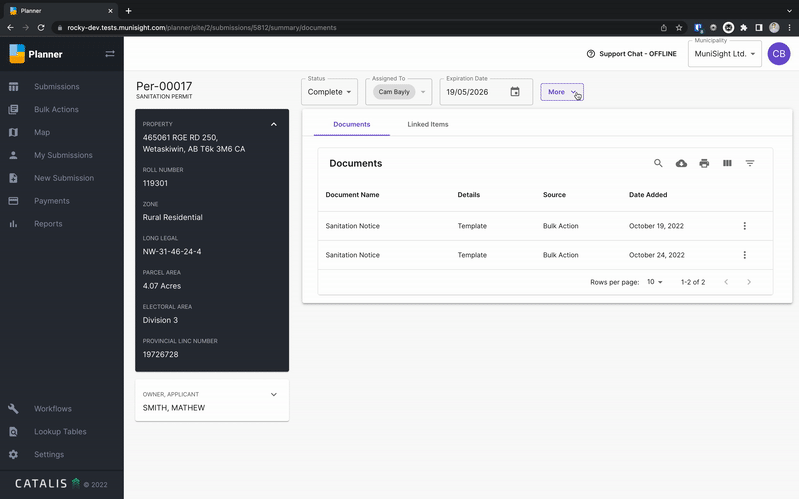
The list of assignees for a submission can be narrowed in the associated workflow. This means only those users you want to assign a submission to are available in the “Assigned to” pick list instead of all the users within your organization.
Tokens in Conditions
Conditions can have tokens in them. Simply add the token from a field in the workflow and that field value will display in the condition.